
Managing customer users
You can update a user’s information or change a variety of settings for them on behalf of a customer.
Click ‘Customers’ from the main menu and then select the customer account.
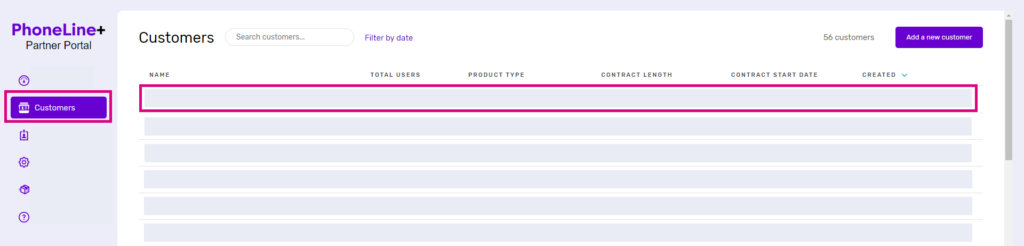
Then click ‘Users’ from the customer menu and select the user you would like to update.

You will find four tabs for updating user information and settings.
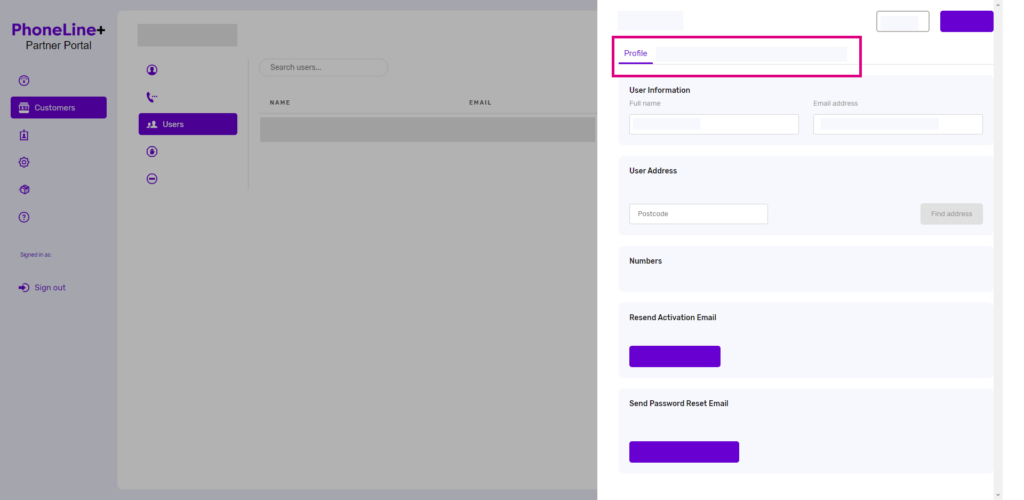
These are:
Profile
Profile allows you to update the user’s information, including their full name and e-mail address. You can also view any numbers that are currently assigned, and delete the user account from here.
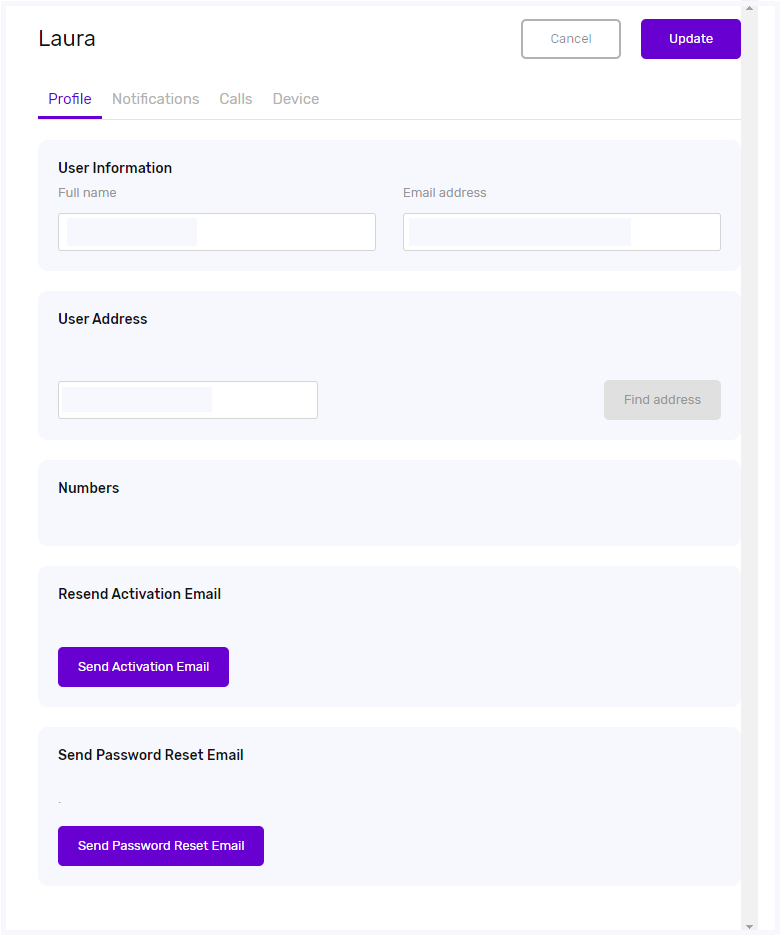
Set a default number
When a number is set as a default this will become the number that the user will automatically use when they log into the app. Users can change the number they use when making outbound calls but if they leave the app and come back their default number will be automatically assigned again.
To set a default number locate the numbers section and select which number you want to be the default.
Set a presentation number
A presentation number is the number that is displayed for outgoing calls. This could be different from the user’s default number.
To select a presentation number, locate ‘Presentation number’ and select the number you want to present from the dropdown.
Notifications
Notifications allows you to select whether the user receives notifications when they have a missed call or new voicemail.
Configure call settings for an individual user
Customer companies who are subscribed to the PhoneLine+ soft client/app can configure their own call settings (click here to visit the relevant category on the PhoneLine+ Customer Knowledge Base and view training articles relating to this). However, if a user is a hardware-only customer, their Channel Partner must configure call settings on their customer’s behalf.

Call settings
Under the ‘Calls’ tab, you can configure what happens when calls aren’t answered and what happens when the agent line is busy.
Options when calls aren’t answered:
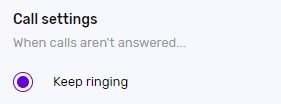
By default, calls will continue to ring until you answer, or the caller hangs up (missed call). This can be updated to the following options:
- Keep ringing. The caller will hear the ringtone consistently until the call is picked up.
- Ask to leave a voicemail. The caller will hear your voicemail recording after a specified amount of time has passed. You can upload a short recording to use as your voicemail greeting here. MP3 and WAV audio files are supported. Click the link to the right to adjust this timeframe.

- Redirect to another user. Select a PhoneLine+ user (within the same customer company) to redirect the call to after a specified amount of time has passed. Click the link to the right to adjust this timeframe.

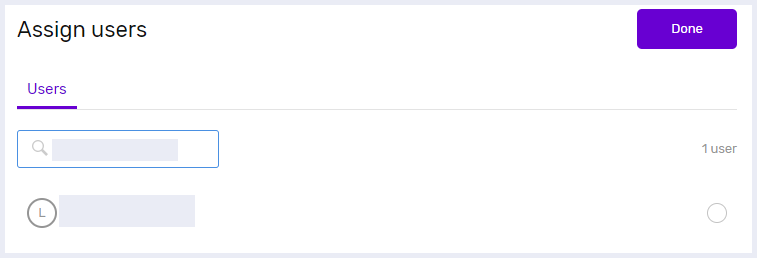
- Redirect to another number. Input a number to redirect the caller to, if the call is not answered by the intended recipient within a specific timeframe. Then, select if your customer wishes for the call to be announced, present the dialled number, or if your customer wishes for inbound calls to be redirected to this number always.

Options when the line is busy:
By default, callers will hear the engaged tone when your line is busy. This can be updated to the following options:
- Play Engaged tone means callers will hear a distinct tone to notify them that the line they are calling is busy
- Ask to leave Voicemail means callers will be prompted to leave a voicemail if the call is not answered. It is also possible to choose how quickly a caller will be sent to voicemail. For example after 10 seconds
- Redirect to another User means callers will be sent to a specified PhoneLine+ user within your company if the call is not answered
- Redirect to another Number means callers will be sent to a specified phone number if the call is not answered. For example, you could redirect to your mobile number or another external number. You can also choose if you wish to announce the call (announcing calls will inform the caller that they are being redirected), set the caller ID to the dialled number, or always redirect calls to this number
Out of hours
Your customer company may wish for calls to be handled differently on different days, or at certain times of the day. You can configure this for them by toggling ‘Out of hours’ on.
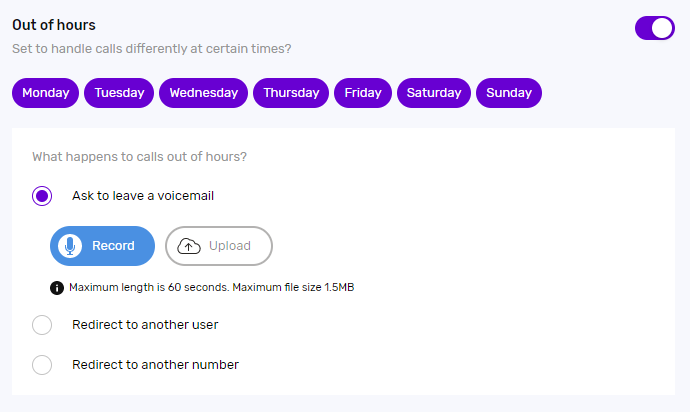
Click each day of the week to select if a company is:
- Available all day. All calls will route directly to that user.
- Unavailable all day. Calls are out of hours.
- Unavailable… – select this option to choose a timeframe where calls will not be routed directly to the user.
Your customer can then choose how they would prefer calls to be handled on any dates/times where they are unavailable, i.e. calls go straight to voicemail, are redirected to another user within that company, or are redirected to another number. Configuration for these will be the same as the ‘Call Settings’ covered earlier in this article.
Voice Portal PIN
Add a custom PIN (6 numbers exactly), here. This PIN will grant users access to the voicemail portal if they are calling from a desk phone.
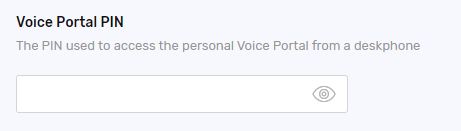
Without a voice portal PIN, users will not be able to access the Voicemail Portal. Customer companies can also set up their own PIN from the PhoneLine+ client/app, however, if your customer is using hardware that is pre-configured for PhoneLine+, the Channel Partner will need to set up a Voice Portal PIN on the customer’s behalf.
Reject anonymous calls

Toggle this setting on if your customer wishes for anonymous callers/callers dialling from a withheld number to be rejected automatically.
Device
‘Device‘ allows you to set up a permanent redirect for the user to another number.
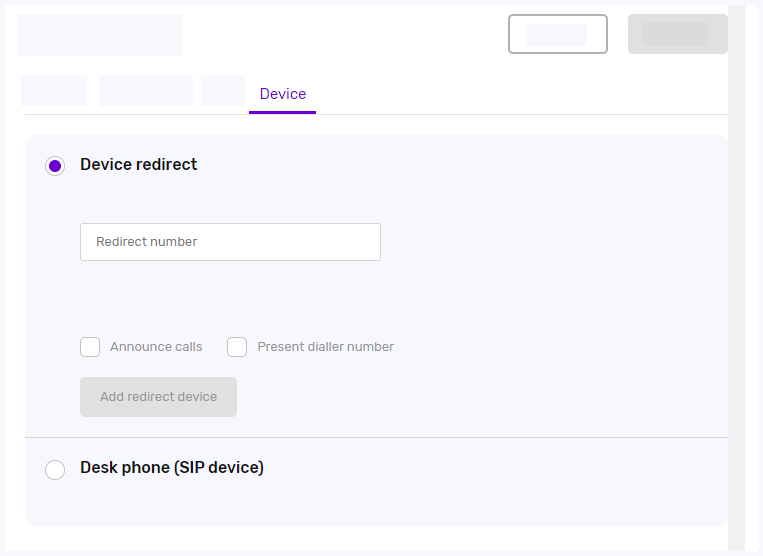
If your customer is using the PhoneLine+ soft client/app, you can also add hardware – for example, a desk phone, for the user to use with their PhoneLine+ account using its associated MAC address.
How are we doing?
Did you find the training on this page useful? Let us know by giving us a thumbs up below. To give us more detailed feedback on the content you would like to see, here please complete the PhoneLine+ Feedback form.