
Assigning customer numbers
Table of Contents
How-to guide
Numbers can be assigned to individual customer users. You can do this on behalf of a customer.
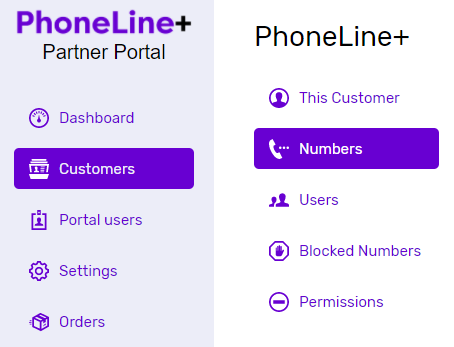
Click ‘Customers’ from the main menu and then select the customer you wish to manage a number for.
Click ‘Numbers’ from the customer menu and select the number from the list available. You can also search for a number if you know it.
Add a user
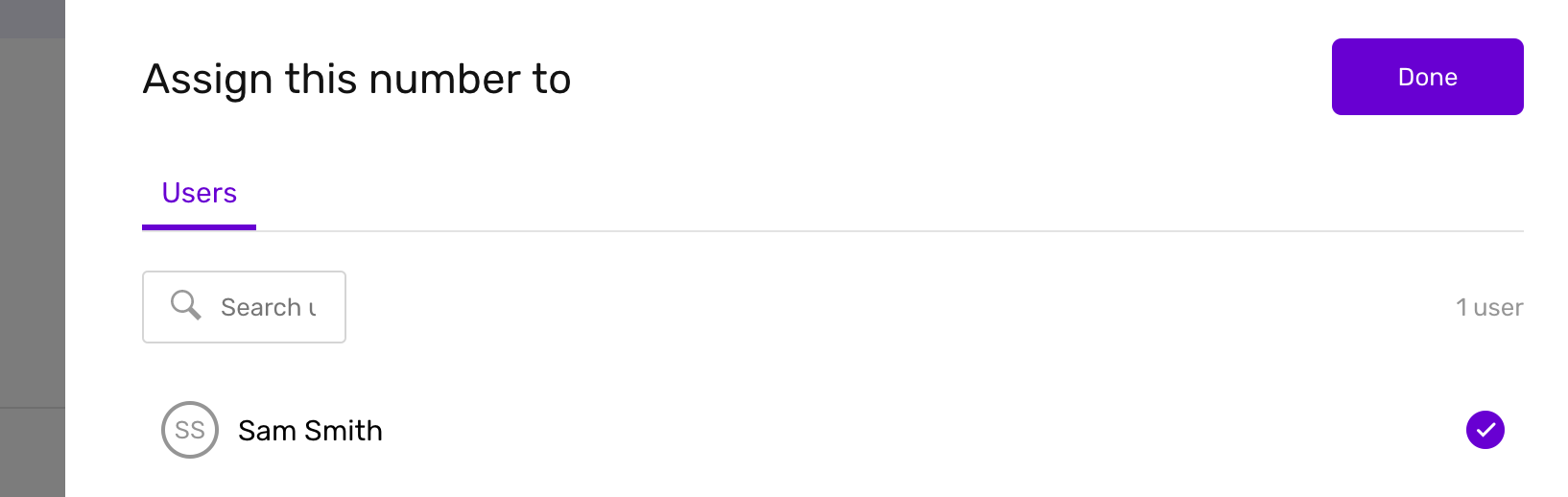
If a number isn’t assigned yet, you have the option to ‘Add’ a user.

You can select a user from the list, then press the ‘Done’ button to confirm.
Edit user
If the number is assigned, you will see the name of the user.
You can change the user who is assigned, by pressing the ‘Edit’ button.

Unassign a number
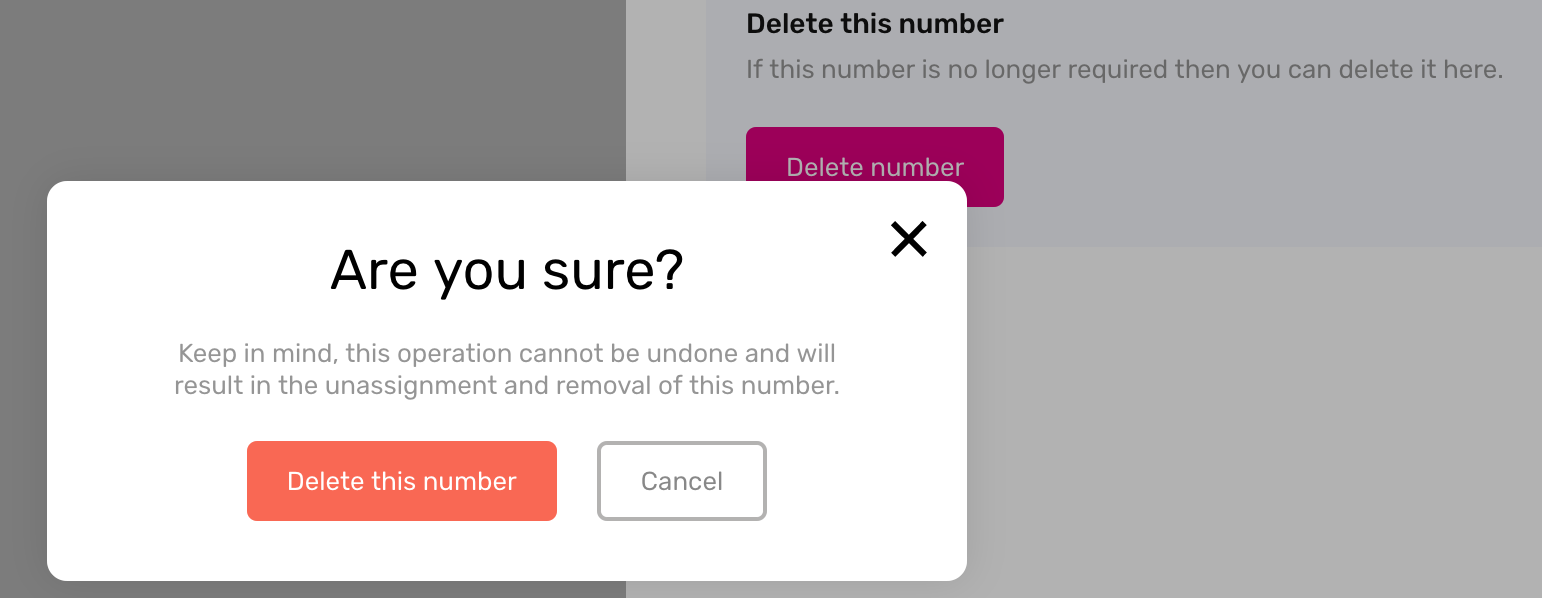
You also have the option of unassigning the number from anywhere it may be currently being used.
Troubleshooting
If you are not able to assign a number to a user on behalf of a customer, please check the following:
- The user that you are trying to assign the number to has been set up and is visible in the list of users
- The number has not already been assigned to another user
If you are still having issues, please contact the PhoneLine+ support team.