
Resend an account activation email to your customer
Send a new account activation email to your customer
Customers will need to activate their PhoneLine+ accounts within 30 days of receiving their initial activation email. After the 30-day window expires, the link within their activation email will no longer work, and a new account activation link will need to be sent.
Channel Partners can re-send a PhoneLine+ account activation email to their customers via the PhoneLine+ Partner Porta.
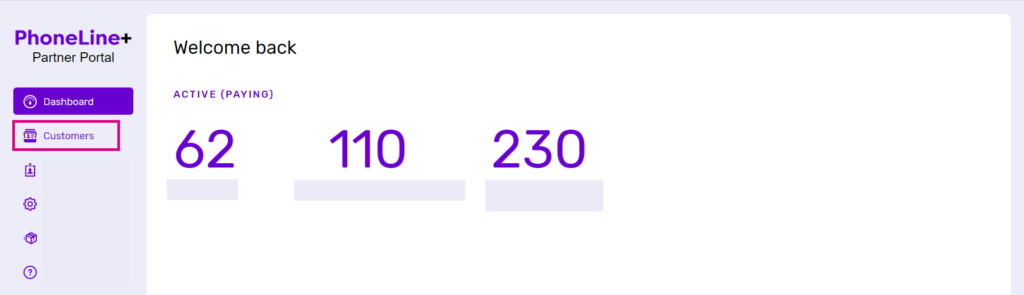
To do this, log in to the PhoneLine+ Partner Portal and click on ‘Customers’.
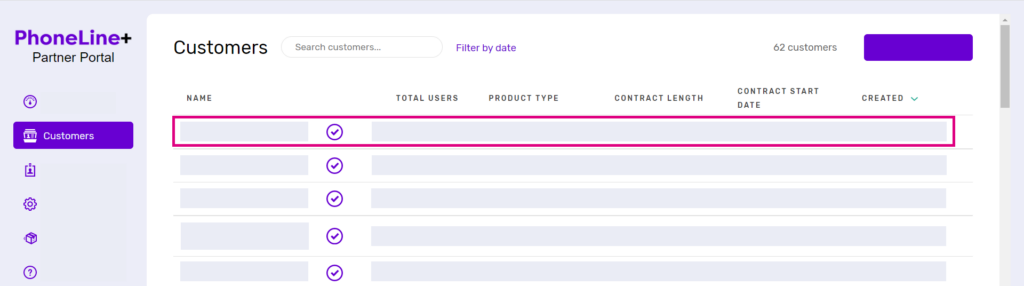
Next, select the customer account that the user belongs to.
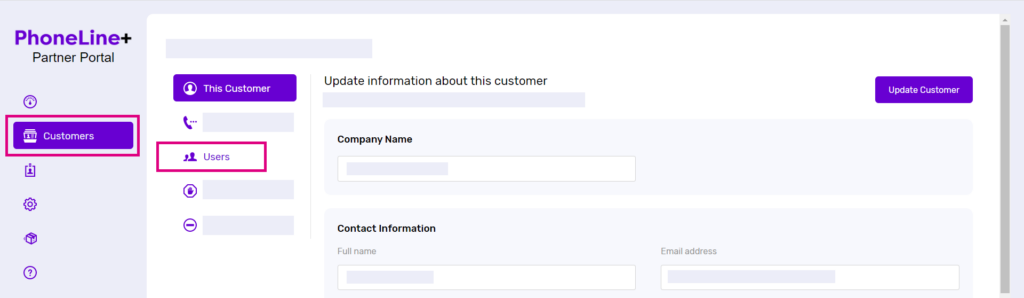
From here, click ‘Users’.
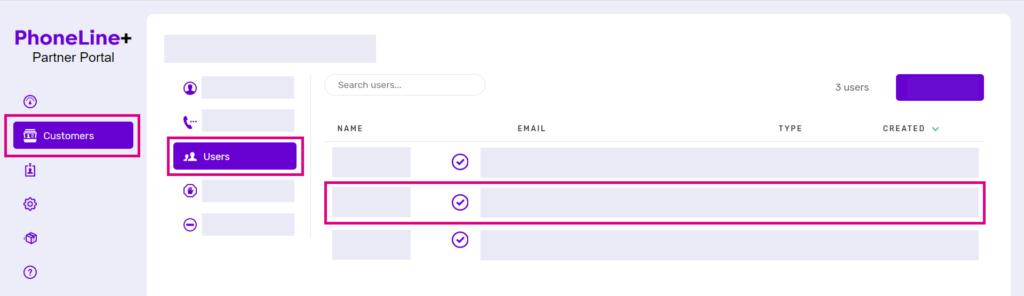
You’ll see the list of all PhoneLine+ users associated with this customer account. Find the user who has requested the account activation email, and click on their name.
Doing this will open the user’s profile. Scroll down, and click ‘Send Activation Email’, and follow the on-screen prompt.
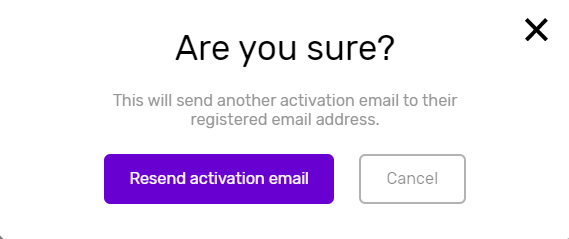
A pop-up notification will appear on your screen to let you know that the request was successful. The email will be delivered to the email address that is listed under ‘User information’ on the user’s profile page. As a Channel Partner, you can change these details for your customer at any time.

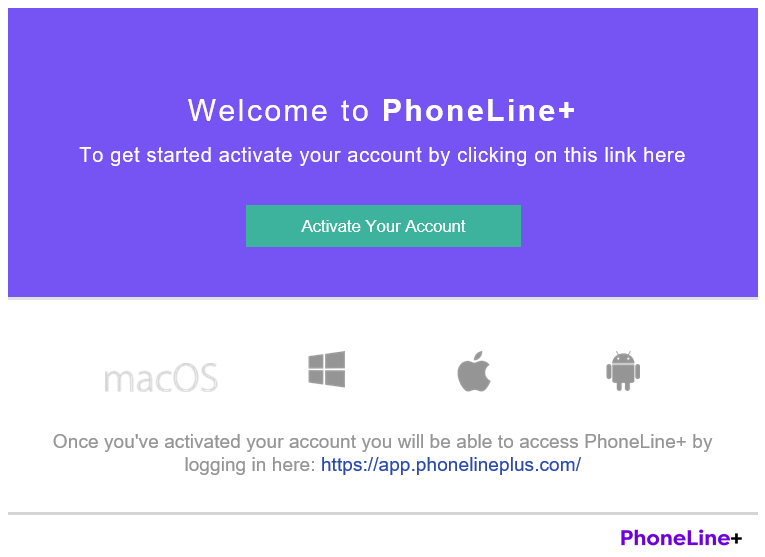
The PhoneLine+ activation email
Once your customer has received their activation email, all they’ll need to do is click ‘Activate Your Account’ and follow the on-screen prompts for creating a new password, providing an address for 999 purposes, and finally reading and agreeing to the End User Licence Agreement.
How are we doing?
Did you find the training on this page useful? Let us know by giving us a thumbs up below. To give us detailed feedback on the content you would like to see, please complete the PhoneLine+ Feedback form.