
Adding new customers
Table of Contents
How-to guide
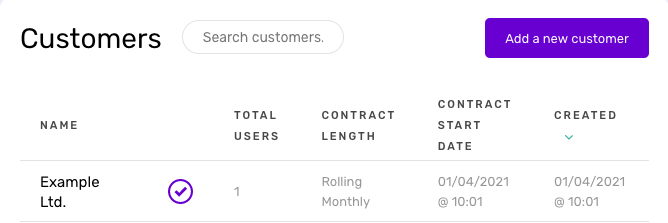
To add a new customer, first select Customers from the main menu.

If you have customers set up already, these will appear in a list on this page.
To create a new customer click the ‘Add a new customer’ button.
Enter a company name and contact information. When adding an email address, please ensure that this is unique to the customer, and that the email address added here is not in use by another customer.
It’s possible to have users without an associated Phone Number.

Finally, you can select the length of contract for the customer, these are:
- Rolling Monthly Contract
- 12 Month Contract
- 24 Month Contract
- 36 Month Contract
- 60 Month Contract

The contract length can be changed later if needed (this applies to the Company start date, not individual user subscription)
Once you are happy the details are correct, press the ‘Add’ button.
The customer will then receive an e-mail with instructions on how to access PhoneLine+.
This can be done in one of the following ways:
- Download and login to the desktop client (Windows and MAC supported)
- Login to the web app using a supported browser (Edge, Chrome, Safari) : https://app.phonelineplus.com/
- Download and login to the mobile app from the Apple App Store and Google Play

They will also be asked to set a password and address details.
Note: These address details will be used by Gamma as the reference address for uploading into the emergency services database.
Any new additional users will also be required to add their own address details during activation of their account. If needed, they can change these details themselves within PhoneLine+.

This user is now considered the owner of the account and can (where permissions are granted), add additional users themselves. Alternatively, the partner can retain ownership of this function.
Adding new customers via API
PhoneLine+ provides a simple JSON API that allows for the creation of end-user customers. For more information on adding customers via API, please click here to visit the relevant Knowledge Base article.
Troubleshooting
If you are not able to add a new customer, please check the following:
- You have completed all required fields (Company Name, Full Name, E-mail Address)
- The e-mail address that you have entered is valid and unique (not already been used within PhoneLine+)
- You have ticked the box to confirm that you have read and accept the Terms and Conditions
If you are still having issues, please contact the PhoneLine+ support team.
How are we doing?
Did you find the training on this page useful? Let us know by giving us a thumbs up below. To give us detailed feedback on the content you would like to see, please complete the PhoneLine+ Feedback form.